21 July 2021
Simplify repetitive tasks with Power Automate
Power Automate (formerly called Flow because Microsoft like to rename things frequently) is Microsoft's take on the automated task manager. Built along the same lines as services such as Zapier and IFTTT, Power Automate allows you to create data processes that are triggered automatically based upon an event. For example, 'Every time I receive an email, copy the attachment to my Attachments folder' or 'Send me an email when I'm mentioned in a Teams channel.'
Templates or custom builds
Power Automate is available to Microsoft 365 users and as well as connecting Office apps to each other, external services such as Dropbox, Google Drive and Twitter can also be added. This allows data to be drawn from other sources outside of Microsoft for processes such as 'Keep track of my Twitter mentions on a Google Sheet.'
It is possible to build complex, multi-step 'flows' from scratch or use and modify some of the hundreds of pre-built Flow templates created by Microsoft or shared by kind-hearted users in the Power Automate community.
Graphical interface eases building
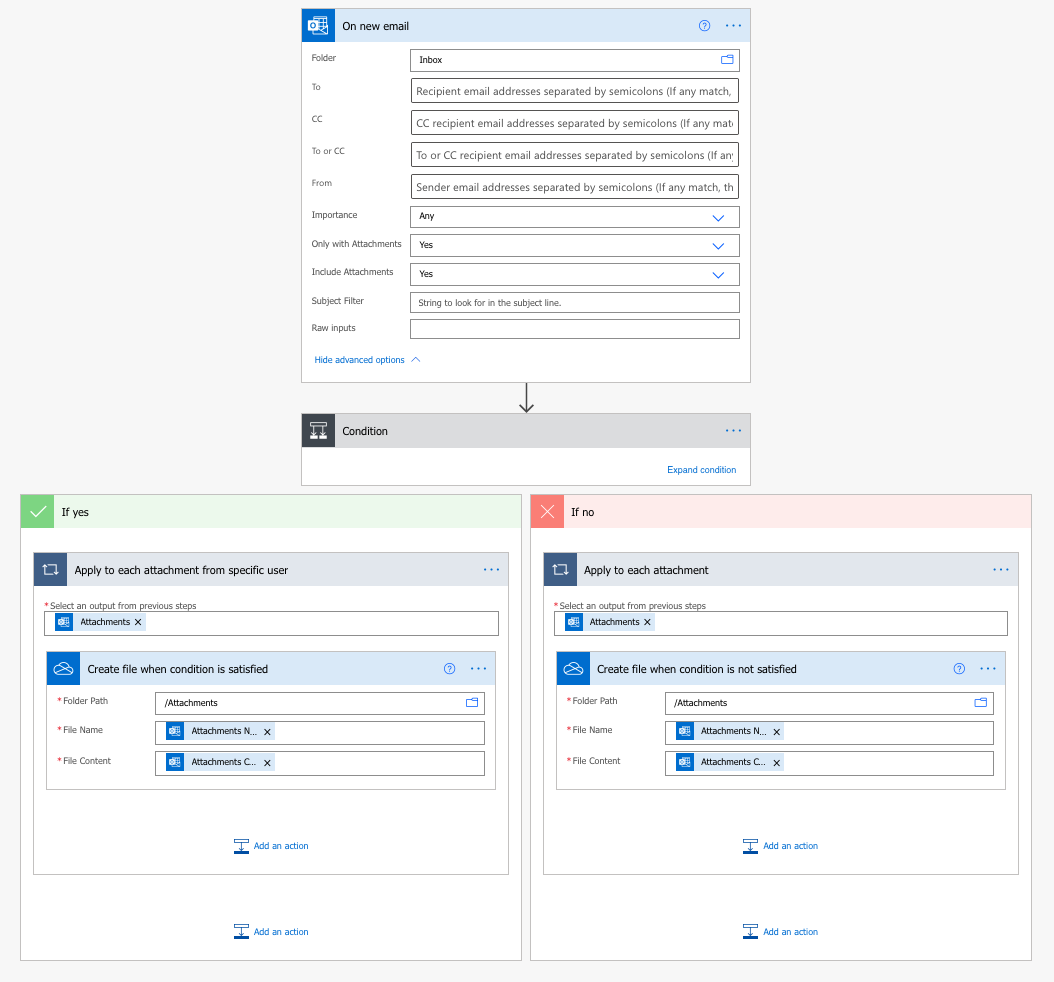
Power Automate uses a graphical interface to let you create a task. This is designed to hide any complicated code and let you fill in the necessary details from drop down and tick boxes. The flow below, created from a template, saves attachments from emails if they meet certain criteria, e.g. spreadsheets from a particular contact, and saves them to an Attachments folder. You can add criteria to make your Flow broad or very specific.
Start slowly
Using Power Automate templates is a good way to learn how the system works. It's best to start with simple Flows and build up your automations from there, ensuring you test as you go.
For more information on moving to Microsoft 365 and Teams, call Strident on 01473 835 280.


